

[2024] Pass Talend Data-Integration-Developer Exam in First Attempt Easily
The Most Efficient Data-Integration-Developer Pdf Dumps For Assured Success
NEW QUESTION # 21
Which statements are true when comparing a Joblet to a tRunJob component?
Choose 3 answers
- A. A Joblet uses the same context variables of the Job in which it is used, unlinke a tRunJob component.
- B. The performance of tRunJob component is better than running an equivalent Job using a Joblet.
- C. Building a Joblet typically requires the use of generic input, and trigger component.
- D. The nested Job called by a tRunJob component cannot use thesame context variable of the Jobin which it is used.
- E. The performance of a Joblet if better than running an equivalent Job using a tRunJob component.
Answer: A,C,D
Explanation:
Explanation
A Joblet is a reusable piece of a job that can be used in multiple jobs as a single component. A tRunJob component is a component that allows you to call another job as a subjob within a parent job. When comparing a Joblet to a tRunJob component, these statements are true:
A Joblet uses the same context variables of the job in which it is used, unlike a tRunJob component. A context variable is a variable that can store a value that can be changed at runtime or between different contexts. A Joblet inherits the context variables from the job that contains it and does not have its own context variables. A tRunJob component can pass context variables from the parent job to the child job, or use a specific context for the child job.
Building a Joblet typically requires the use of generic input and trigger components. A Joblet can have one or more input and output flows that connect it with other components in a job. To create these flows, you need to use generic input and trigger components, such as tJobletInput, tJobletOutput, tJobletTriggerInput, and tJobletTriggerOutput. These components allow you to define schemas and triggers for your Joblet without depending on specific components.
The nested job called by a tRunJob component cannot use the same context variables of the job in which it is used. A nested job is a job that is called by another job using a tRunJob component. A nested job can have its own context variables or receive context variables from its parent job, but it cannot use thesame context variables as its parent job. This means that if you have two context variables with the same name in both jobs, they will be treated as separate variables and will not share values.
These statements are false when comparing a Joblet to a tRunJob component:
The performance of tRunJob component is better than running an equivalent job using a Joblet. The performance of a Joblet is better than running an equivalent job using a tRunJob component. This is because a Joblet is integrated into the main code of the job and does not require launching another JVM process or loading another metadata object like a tRunJob component does. References: Talend Open Studio: Open-source ETL and Free Data Integration | Talend, [Joblets - 7.3], [tRunJob properties - 7.3],
[Contexts - 7.3]
NEW QUESTION # 22
What is the generic Input component used for in a Joblet design?
- A. Triggering a Joblet
- B. Triggering a subJob
- C. Carrying data into a subJob
- D. Carrying data into a Joblet
Answer: D
Explanation:
Explanation
The generic Input component used for in a Joblet design is the tJobletInput component. This component is used to carry data into a Joblet from another component in the job that contains the Joblet. A Joblet is a reusable piece of a job that can be used in multiple jobs as a single component. A Joblet can have one or more input and output flows that connect it with other components in a job. To create these flows, you need to use generic input and output components, such as tJobletInput, tJobletOutput, tJobletTriggerInput, and tJobletTriggerOutput. These components allow you to define schemas and triggers for your Joblet without depending on specific components.
The tJobletInput component is not used for triggering a Joblet, triggering a subjob, or carrying data into a subjob. These are different concepts and functionalities in Talend Studio. A trigger is a link that activates a subjob or a component based on a condition or an event. A subjob is a part of a job that consists of one or more components connected by data flows or triggers. A subjob can be triggered by another subjob using triggers such as OnSubjobOk, OnSubjobError, Run if, etc. A subjob can also carry data into another subjob using data flows such as main, lookup, reject, etc. References: Talend Open Studio: Open-source ETL and Free Data Integration | Talend, [tJobletInput properties - 7.3], [Joblets - 7.3], [Triggers - 7.3]
NEW QUESTION # 23
You need to call a different Job within a Job you are developing.
Which mechanism allows you to pass the parameters to the lob you want to call?
- A. Context parameters
- B. File
- C. CommandLine options
- D. Java Function paramters
Answer: A
Explanation:
Explanation
To call a different job within a job you are developing, you can use the tRunJob component. This component allows you to execute another job as a subjob within a parent job. To pass the parameters to the job you want to call, you can use the context parameters. Context parameters are variables that can store values that can be changed at runtime or between different contexts. You can define context parameters in the Contexts tab of your job and assign them values for each context. You can also pass context parameters from the parent job to the child job by using the Context Param tab of the tRunJob component. This way, you can parameterize the properties or expressions of the child job with the values from the parent job.
You do not need to use a file, command line options, or Java function parameters to pass parameters to a different job. These methods are not supported by Talend Studio and may cause errors or unexpected results. References: Talend Open Studio: Open-source ETL and Free Data Integration | Talend, [tRunJob properties - 7.3], [Contexts - 7.3]
NEW QUESTION # 24
Where can you specify the remote JobServer to execute a Job?
- A. Extra tab in the Job view
- B. Job settings section of the Project Settings windows
- C. Run/Debug section in the Preference window
- D. Target Exec tab in the Run view
Answer: D
Explanation:
Explanation
To specify the remote JobServer to execute a job, you need to use the Target Exec tab in the Run view of Talend Studio. The Run view allows you to configure and execute your job from Talend Studio. The Target Exec tab allows you to select whether you want to run your job locally or remotely on a JobServer. A JobServer is a server application that allows you to execute jobs remotely from Talend Studio or Talend Administration Center. To run your job on a remote JobServer, you need to select Remote Jobserver option from the drop-down menu and select or add a JobServer connection from the list.
You do not need to use Job settings section of Project Settings window, Extra tab in Job view, or Run/Debug section in Preferences window. These windows are not used to specify remote JobServer execution. The Job settings section of Project Settings window is used to configure general settings for your jobs, such as versioning, statistics, logs, etc. The Extra tab in Job view is used to configure extra features for your job, such as implicit context load, tStatCatcher, tLogCatcher, etc. The Run/Debug section in Preferences window is used to configure run/debug settings for your Talend Studio, such as JVM arguments, execution mode, etc. References: Talend Open Studio: Open-source ETL and Free Data Integration | Talend, [Run view - 7.3],
[Project Settings - 7.3], [Job view - 7.3], [Preferences - 7.3]
NEW QUESTION # 25
You create a Job consisting of two subJobs, A and B. You added Joblet C with the intension of running it between A and B.
What are the minimum requirements to orchestrate this?(Choose Two)
- A. Add TRIGGER_INPUT and TRIGGER_OUTPUT components into C
- B. Add TRIGGER_INPUT and TRIGGER_OUTPUT components into B.
- C. Link A, B and C using On Subject Ok triggers.
- D. Add TRIGGER_INPUT and TRIGGER_OUTPUT components into A.
Answer: A,C
Explanation:
Explanation
To create a job consisting of two subjobs, A and B, and add a Joblet C with the intention of running it between A and B, you need to do the following steps:
Design subjob A by adding components and links to it in the Designer workspace.
Add a Start component to mark the beginning of subjob B and link it to subjob A using an OnSubjobOk trigger.
Design subjob B by adding components and links to it after the Start component in the Designer workspace.
Add a tJobletTriggerInput component to your Joblet C design and link it to other components in your Joblet using data flows or triggers.
Add a tJobletTriggerOutput component to your Joblet C design and link it to other components in your Joblet using data flows or triggers.
Drag your Joblet C from the Repository tree view to the Designer workspace between subjob A and subjob B.
Link your Joblet C to subjob A using an OnComponentOk trigger from the last component of subjob A to the tJobletTriggerInput component of your Joblet C.
Link your Joblet C to subjob B using an OnComponentOk trigger from the tJobletTriggerOutput component of your Joblet C to the Start component of subjob B.
The minimum requirements to orchestrate this are adding TRIGGER_INPUT and TRIGGER_OUTPUT components into C and linking A, B, and C using OnSubjobOk triggers. These are generic components that allow you to define triggers for your Joblet without depending on specific components. You do not need to add TRIGGER_INPUT and TRIGGER_OUTPUT components into A or B, as these are regular subjobs that can use any type of components or triggers. References: Talend Open Studio: Open-source ETL and Free Data Integration | Talend, [tJobletTriggerInput properties - 7.3], [tJobletTriggerOutput properties - 7.3], [Joblets -
7.3], [Triggers - 7.3]
NEW QUESTION # 26
Which statement is true about the Sync columns button on the Basic settings tab of the Component view?
Choose 2 answers
- A. Retrieves the schema of the current component to match the Next component
- B. Retrieves and synchronizes the output schema with the input schema for tJavaRow.
- C. Retrieves and synchronizes the output file schema with the input file schema for tFileOutputed limited.
- D. Retrieves the schema from the input component connected in the lob.
Answer: B,D
Explanation:
Explanation
The Sync columns button on the Basic settings tab of the Component view retrieves the schema from the input component connected in the Job and synchronizes it with the current component's schema. This button is available for most of the components that have an input and an output schema, such as tJavaRow, tMap, tFileOutputDelimited, etc. However, this button does not retrieve and synchronize the output file schema with the input file schema for tFileOutputDelimited, as this component only has one output schema.
NEW QUESTION # 27
You have two branches: Branch1 contains Job1, and Branch 2 contains Job 2. You want to copy Job1 to Branch 2 and preserve the change history when connecting Studio to Talend Administrator Center.
Which method should you use to preserve the change history?
- A. Switch to Branch1, copy lob 1, switch to Branch 2, and paste Job 1 over Job 2.
- B. Switch to branch 1, copy the Branch 1 Job, switch to Branch 2, and paste the Job into Branch 2.
- C. Switch to Branch 1, right-click Job 1, select Copy to branch, and select Branch 2.
- D. Switch to Branch 1, copy the Branch 1 job, switch to Branch 2, and paste the job into Branch 2.
Answer: C
Explanation:
Explanation
To copy Job1 from Branch1 to Branch2 and preserve the change history when connecting Studio to Talend Administration Center, you need to use the Copy to branchoption. This option allows you to copy a job or a folder from one branch to another branch in the same project without losing the version history. You can access this option by switching to Branch1, right-clicking on Job1 in the Repository tree view, and selecting Copy to branch. This will open a dialog box where you can select Branch2 as the target branch and confirm the copy operation.
You do not need to use the import items, create standard job, or paste over options. These options are not used to copy jobs between branches and preserve the change history. The import items option is used to import items (such as jobs, metadata, routines, etc.) from an archive file that can be exported from another project or workspace. The create standard job option is used to create a new job with a name and a description. The paste over option is used to overwrite an existing job with another job that has been copied or cut from the same or another project. References: Talend Open Studio: Open-source ETL and Free Data Integration | Talend, [Copy to branch - 7.3]
NEW QUESTION # 28
You are building a Job to run outsode Talend Studio that must run on both Linux and Windows.
Which action should you take when building the Job?
- A. Configure the Job properties building the Job.
- B. Select Build Job because Jobs are runnable on all platforms
- C. Specify All for the Shell launcher option in the Build Job windows.
- D. Build one package for each platform.
Answer: C
Explanation:
Explanation
To build a job to run outside Talend Studio that must run on both Linux and Windows, you need to select Build Job because jobs are runnable on all platforms. The Build Job option allows you to export your job as an executable file that can be run independently from Talend Studio on any platform that supports Java. You can access this option by right-clicking on your job in the Repository tree view and selecting Build Job. This will open a dialog box where you can configure the build settings, such as destination folder, archive name, context, etc.
You do not need to specify All for the Shell launcher option in the Build Job window, configure the job properties before building the job, or build one package for each platform. These methods are not necessary or available in Talend Studio and may cause errors or unexpected results. References: Talend Open Studio:
Open-source ETL and Free Data Integration | Talend, [Build Job - 7.3]
NEW QUESTION # 29
A colleague has exported a Data Integration Job to run outside Talend Studio.
How do you run the Job?
- A. Extract the files from the archive and run the JAR file.
- B. Extract the content of the archive and run the batch file or the shell script.
- C. Install the Job and start the resulting service.
- D. Extract the contents of the archive and run the batch file and shell script.
Answer: B
Explanation:
Explanation
To run a job that has been exported by a colleague to run outside Talend Studio, you need to extract the content of the archive and run the batch file or the shell script. The archive file contains all the files and libraries required to run the job independently from Talend Studio on any platform that supports Java. The archive file also contains two executable files: a batch file (.bat) for Windows platforms and a shell script (.sh) for Linux platforms. You need to run the appropriate file for your platform by double-clicking on it or using a command line tool. This will launch the job and display its output in a console window.
You do not need to extract the contents of the archive and run both the batch file and shell script, install the job and start the resulting service, or extract the files from the archive and run the JAR file. These methods are not correct or available in Talend Studio and may cause errors or unexpected results. References: Talend Open Studio: Open-source ETL and Free Data Integration | Talend, [Build Job - 7.3]
NEW QUESTION # 30
Which statements are true about using the Implicit Context Load feature in Talend Studio?
Choose? answers
- A. Loads context parameters dynamically at the time of Job execution
- B. Loads context parameters from a delimited file only
- C. Loads context parameters from a database table only
- D. Loads context parameters from both a delimited file and a database table
Answer: A,D
Explanation:
Explanation
The Implicit Context Load feature in Talend Studio is a way of loading context parameters dynamically at the time of job execution from an external source, such as a delimited file or a database table. This feature can be enabled by checking the Implicit Context Load option in the Advanced Settings tab of Run Job section in Talend Studio. This feature allows the developer to avoid hard-coding context parameters in the job design and to change them easily without modifying the job. The Implicit Context Load feature can load context parameters from both a delimited file and a database table, depending on the configuration of the Implicit Context Load option. The developer can specify the file path or the database connection details, as well as the mapping between the source columns and the context variables. References: Talend Data Integration - Software to Connect, Access, and Transform Data | Talend, [Implicit Context Load - 7.3]
NEW QUESTION # 31
You are building a complex Job and want to explore different optionsfor optimizing execution timesusing parallelism.
How can you identify execution times to verify the effectiveness of your changes?
Choose 2 answers
- A. Observing the execution time in the Code view.
- B. Comparing time stamp in Trace Debug mode.
- C. Heading the time stamps from the execution console in the Run view.
- D. Observing the execution times that annotate the flows in the Designer.
Answer: C,D
Explanation:
Explanation
To identify execution times to verify the effectiveness of your changes, you can use one of these methods:
Reading the time stamps from the execution console in the Run view. This method allows you to see the start and end time of each subjob and component in your job, as well as the total execution time of the job. You can also see the number of rows processed by each component and the status of the job (success or failure).
Observing the execution times that annotate the flows in the Designer. This method allows you to see the execution time of each flow (main, lookup, reject, etc.) between components in your job. You can also see the number of rows processed by each flow and the throughput (rows per second) of each flow.
You cannot use these methods to identify execution times:
Observing the execution time in the Code view. This method does not show you the execution time of your job or its components, but only the generated code of your job in Java or Perl. The Code view is useful for debugging or customizing your code, but not for measuring performance.
Comparing time stamps in Trace Debug mode. This method does not show you the execution time of your job or its components, but only the values of eachcolumn for each row processed by your job. The Trace Debug mode is useful for tracing data quality or transformation issues, but not for measuring performance. References: Talend Open Studio: Open-source ETL and Free Data Integration | Talend,
[Run view - 7.3], [Designer - 7.3], [Code view - 7.3], [Trace Debug mode - 7.3]
NEW QUESTION # 32
Which element carries data between two components in a Job?
- A. Row
- B. Link
- C. Sublob
- D. Trigger
Answer: A
Explanation:
Explanation
A row is an element that carries data between two components in a Job. A row is also called a link or a connector. A row can be of different types, such as Main, Lookup, Reject, Iterate, etc. A subjob is a group of components that are connected together and executed as a single unit. A trigger is an element that controls the execution flow of a Job or a subjob. A trigger can be of different types, such as OnSubjobOk, OnComponentOk, RunIf, etc.
NEW QUESTION # 33
You are using the tMap component to configure a mapping.
What do the tables on the left side of the Map Editor window represent?
- A. Explosions to apply to the input data
- B. Schemas of the output rows
- C. Schemas of the input rows
- D. Expression to apply to the output data
Answer: C
Explanation:
Explanation
The tables on the left side of the Map Editor window represent the schemas of the input rows. The schemas define the structure and type of the data that is coming from the input components connected to the tMap component. You can drag and drop columns from the input tables to the output tables on the right side of the Map Editor window to create mappings and transformations.
NEW QUESTION # 34
You are collaborating on a project with other developers using talend best practices.
When should you use a tag?
- A. Denoting major or minor releases.
- B. Denoting a milestone in the lifecycle of a project
- C. Fixing hugs or enhancements.
- D. Capturing snapshot of a codebase that requires ongoing maintenance.
Answer: B
Explanation:
Explanation
Tags are used to mark specific points in the development lifecycle of a project. This can be done for a variety of reasons, such as:
To mark the completion of a major feature or release
To mark the start of a new development phase (e.g., QA, production)
To mark a known good state of the codebase (e.g., before a risky change) Tags can be used to create branches, which can then be used to develop and test new features or bug fixes.
They can also be used to deploy the codebase to different environments (e.g., development, staging, production).
Examples of when to use a tag:
When you are ready to release a new version of your application to production.
When you have completed a major feature or milestone in the development of your application.
Before making a risky change to your codebase, such as a database migration or refactoring.
When you need to deploy your application to a different environment, such as staging or production.
Benefits of using tags:
Tags can help you to keep track of the different versions of your codebase.
Tags can help you to roll back to a previous version of your codebase if necessary.
Tags can help you to deploy your codebase to different environments.
Tags can help you to collaborate with other developers more effectively.
References:
Talend Best Practices Guide:
https://help.talend.com/r/en-US/8.0/software-dev-lifecycle-best-practices-guide/branching-merging-and-ta Git documentation on tags: https://git-scm.com/docs/git-tag
NEW QUESTION # 35
In some instances, after applying changes to a component schema, you are asked if you would like to propagate the changes.
What is the significance of this prompt?
- A. Confirm that you want to apply the schema changes to the next component in the Job.
- B. Confirm Out you want to apply the schema, changes to the previous component in the Job.
- C. Confirm That you want to apply the schema changes to the selected component.
- D. Confirm that you want to apply the schema changes to both the previous and next components in the Job.
Answer: A
Explanation:
Explanation
In some instances, after applying changes to a component schema, you are asked if you would like to propagate the changes. This prompt is significant because it allows you to confirm that you want to apply the schema changes to the next component in the Job. This can save you time and effort by automatically updating the schema of the downstream component, instead of manually editing it. However, you should be careful when propagating changes, as it may overwrite existing schemas or cause errors in the Job logic. You can also choose to cancel the propagation and edit the schema manually.
NEW QUESTION # 36
Which exceptions car be caught using tLogCatcher?
Choose 3 answers
- A. tDie
- B. OnbubjobError Exception
- C. tAssertCatcher
- D. Java Exception
- E. tWarn
Answer: A,D,E
Explanation:
Explanation
The tLogCatcher component can catch exceptions from three types of components: tWarn, tDie, and Java Exception. The tWarn component is used to trigger a warning message that can be caught by the tLogCatcher component for an exhaustive log. The tDie component is used to stop the execution of a job or a subjob and return an error code that can be caught by the tLogCatcher component for an exhaustive log. The Java Exception component is used to handle any Java exception that occurs during the execution of a job or a subjob and pass it to the tLogCatcher component for an exhaustive log. The tLogCatcher component cannot catch exceptions from other types of components, such as OnSubjobError Exception or tAssertCatcher. The OnSubjobError Exception is a trigger that is activated when an error occurs in a subjob and can be used to perform some actions after the error, such as sending an email or logging a message. The tAssertCatcher component is a component that collects the assert data generated by the tAssert component and passes it on to the output defined. The tAssert component is used to verify if a condition is true or false and generate an assert data accordingly. References: Talend Open Studio: Open-source ETL and Free Data Integration | Talend,
[tLogCatcher properties - 7.3], [tWarn properties - 7.3], [tDie properties - 7.3], [Java Exception properties -
7.3], [OnSubjobError properties - 7.3], [tAssertCatcher properties - 7.3], [tAssert properties - 7.3]
NEW QUESTION # 37
Which capabilities does Traces Debugprovide?
Choose 2 answers
- A. Advancing one column at a time
- B. Breaking on a selected line of code
- C. Breaking when an input column fulfills a condition
- D. Advancing one row at a time
- E. Filtering which data is propagated by a flow
Answer: C,D
Explanation:
Explanation
Trace Debug mode is a feature that allows you to trace each row processed by your job components and see the values of each column in each row. You can access this mode by opening the Debug Run tab of the Run view and clicking on Trace Debug button.
The capabilities that Trace Debug mode provides are:
Breaking when an input column fulfills a condition. You can set breakpoints on traces based on a condition or an expression that involves input data columns. For example, you can set a breakpoint to pause your job when a customer name contains a certain string or when a product price exceeds a certain value. To set a breakpoint based on a condition, you need to right-click on a trace on your jobdesign workspace and select Show Breakpoint Setup option. This will open a dialog box where you can enter a condition or an expression for your breakpoint.
Advancing one row at a time. You can advance the execution of your job one row at a time by using the Step Over button in the toolbar of the Run view. This will allow you to see how each row is processed by your job components and how it affects the output data.
The capabilities that Trace Debug mode does not provide are:
Filtering which data is propagated by a flow. You cannot filter which data is propagated by a flow in Trace Debug mode. A flow is a link that shows the data transfer between components in your job design workspace. In Trace Debug mode, you can see the data flow on each trace and inspect the values of each column for each row processed by your job. However, you cannot change which rows are propagated by a flow based on a condition or an expression.
Advancing one column at a time. You cannot advance the execution of your job one column at a time in Trace Debug mode. You can only advance the execution of your job one row at a time by using the Step Over button in the toolbar of the Run view. This will allow you to see how each row is processed by your job components and how it affects the output data. However, you cannot see how each column is processed by your job components and how it affects the output data.
Breaking on a selected line of code. You cannot break on a selected line of code in Trace Debug mode.
You can only break on a trace based on a condition or an expression that involves input data columns.
To break on a selected line of code, you need to use Java Debug mode. Java Debug mode allows you to debug your job code in Java or Perl and see the values of each variable or expression in your code. You can access this mode by switching to the Java perspective and clicking on the Debug button in the toolbar of the Code view. References: Talend Open Studio: Open-source ETL and Free Data Integration
| Talend, [Trace Debug mode - 7.3], [Java Debug mode - 7.3]
NEW QUESTION # 38
How are contexts defined?
- A. Talend Studio defines a default context, and you can define more as needed.
- B. They are automatically defined by the types of components used in the Job.
- C. In addition to a default context, Talend Studio defines a list of standard contexts you can use in your Ions.
- D. You must define the contexts
Answer: D
Explanation:
Explanation
Contexts are a way of defining different sets of values for variables that are used in a job. For example, you can define a context for testing and another context for production, with different values for the database connection parameters, file paths, etc. You can then switch between the contexts easily without modifying the job design. Contexts are not automatically defined by the types of components used in the job, nor by Talend Studio. You must define the contexts yourself in the Contexts tab of your job. You can also create context groups in the Repository and reuse them in multiple jobs. References: Talend Data Integration - Software to Connect, Access, and Transform Data | Talend,
NEW QUESTION # 39
You have a tMap component whose main input provides the following data:
There is also a lookup table with the following data: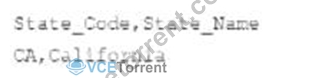
An inner join is configuredbetween the State column of the main input with the State Code column of the lookup table.
What happens when the row containing the name Andrew laylor is processed?
- A. If an output is not configured to collect inner join rejects, an error condition is raises.
- B. If an output is configured to collect inner join rejects, the data flows to that output as well as the main output.
- C. If an output is configured to collect inner join rejects, the data flows only to that output.
- D. If an output is not configured to collect inner Join rejects, the data flows to the main output.
Answer: C
Explanation:
Explanation
The tMap component allows you to perform data transformations and joins between multiple input sources and output targets. You can configure different types of joins between the main input and the lookup tables, such as inner join, left outer join, right outer join, etc. An inner join returns only the matching rows from both tables based on a join condition. If a row from the main input does not match any row from the lookup table, it is considered as an inner join reject. You can configure an output to collect these rejects by setting the Catch inner join reject option to true. If you do so, the data will flow only to that output and not to the main output. If you do not configure an output to collect the rejects, the data will be ignored and no error will be raised. References: Talend Open Studio: Open-source ETL and Free Data Integration | Talend, [tMap properties - 7.3]
NEW QUESTION # 40
A Job has two contexts defined: lest (the default) and Prod, and two context variables defined: path and server.
Which expression should you use to reference the path?
- A. contex,(test.Prod).path
- B. context, path
- C. context(path)
- D. context.Tfblpdtr1
Answer: B
Explanation:
Explanation
To reference the value of a context variable you defined, you can use the syntax context.variable_name, where variable_name is the name of the context variable. For example, if you have a context variable named path, you can reference its value by using context.path. You do not need to specify the context name (such as test or prod) or use parentheses or brackets around the variable name. References: Talend Data Integration - Software to Connect, Access, and Transform Data | Talend,
NEW QUESTION # 41
Which templates allow you to create ready-to-run Jobs in Talend Studio?
Choose2answers
- A. TabletoTable
- B. TahleToFile
- C. JobletToFile
- D. FileToDatabase.
Answer: A,B
Explanation:
Explanation
Talend Studio provides templates that allow you to create ready-to-run Jobs for common scenarios, such as Table to Table, File to Database, Table to File, etc. You can access these templates from the Repository > Job Designs > Create Job from Template menu. Joblet to File is not a valid template name.
NEW QUESTION # 42
......
Talend Data-Integration-Developer Exam Syllabus Topics:
| Topic | Details |
|---|---|
| Topic 1 |
|
| Topic 2 |
|
| Topic 3 |
|
| Topic 4 |
|
| Topic 5 |
|
| Topic 6 |
|
| Topic 7 |
|
| Topic 8 |
|
We offers you the latest free online Data-Integration-Developer dumps to practice: https://www.vcetorrent.com/Data-Integration-Developer-valid-vce-torrent.html
Talend Data-Integration-Developer Real Exam Questions Guaranteed Updated Dump: https://drive.google.com/open?id=1Xqhn36rxaDFm0LNOAY8aN8BP1jeKbIK1